


Heads up: This is not financial or legal advice. We are sharing what we have learned from the LEGO reselling community.
A LEGO Chrome extension that shows BrickLink prices while you browse can save resellers hours every week. Instead of hunting through tabs, copying item names, and checking prices manually, you see current market value instantly on eBay, Whatnot, Mercari, and other listing pages. This guide walks you through how these extensions work, which ones are worth using, and how to integrate them into your sourcing and pricing workflow.
Key takeaways:
- Chrome extensions display real-time BrickLink pricing without leaving your current page, cutting research time by 50% or more.
- The best extensions work on eBay, Facebook Marketplace, Whatnot, and bulk-lot listings to help you decide on bids and offers in seconds.
- Price overlays are most useful when sourcing, evaluating bulk lots, and verifying competitive eBay or Whatnot pricing before listing.
- Automation tools should complement, not replace, manual condition assessment and market context checks.
- Many resellers combine browser extensions with inventory management and scanning tools to build a complete workflow.
What is a LEGO Chrome extension for BrickLink price checks?
A LEGO Chrome extension is a small program that runs inside your browser and automatically displays BrickLink market pricing on product listings across the web. When you're browsing eBay minifigures, Facebook Marketplace bulk lots, or Whatnot auction pages, the extension pulls live BrickLink data and overlays it next to the item you're looking at. No tab-switching required.
The core value is speed. A reseller sourcing a bulk lot on Facebook Marketplace can now see estimated values for individual minifigures, sets, or parts in seconds instead of spending 20 or 30 minutes cross-referencing each item. For Whatnot sellers evaluating inventory before a show, or eBay resellers bidding on lots, this difference adds up fast. You're not guessing anymore. You're making bids based on real market data.
Extensions that work well also integrate with the BrickLink API to pull current average sold prices, not just asking prices. That matters because BrickLink listing prices can be inflated. What actually sold last week is what tells you real market value. In my experience, the difference between asking prices and actual sold prices on BrickLink can be anywhere from 10% to 40%, depending on the minifigure variant and current demand.
How do Chrome extensions save resellers time?
Let's walk through a real sourcing scenario. You find a bulk lot of 50 minifigures on Facebook Marketplace for $60. Without an extension, you'd open BrickLink in a new tab, search for each figure by name or ID, note down the prices, and manually add them up. That takes 30 to 45 minutes for a lot that size, and you're probably missing a few figures or getting the wrong variants.
With a working Chrome extension, you open the Facebook listing, snap a photo of the minifigures with your phone, and bulk-scan them using a dedicated LEGO scanning app. The app identifies the figures and cross-references prices. Or, if the lot is listed with text descriptions or you can manually enter SKUs, the extension shows prices inline as you type or select items. Either way, you go from 45 minutes to 2 to 5 minutes of actual research. I have personally processed hundreds of bulk lots from Facebook Marketplace and Craigslist, and the biggest time drain before using a Chrome extension was always the manual lookup phase.
That time savings multiplies. If you source 10 lots per week, you're saving 5 to 7 hours. Over a month, that's 20 to 28 hours freed up for actual selling, listing, or shipping. When I sort through a bulk lot now with price overlay tools, I can make a confident offer or pass decision in under 5 minutes instead of committing half my sourcing day to a single lot.
Which Chrome extensions work best for LEGO resellers?
There are a few directions resellers can go here. First, there are general LEGO price-checking extensions that pull BrickLink data on any website. Second, there are marketplace-specific tools built into platforms like Whatnot or eBay that show comparative pricing. Third, there are dedicated LEGO scanner and inventory apps that include browser-based price lookups as a side feature.
The brick'em Chrome extension is designed for LEGO resellers who work across multiple platforms. It integrates with BrickLink's pricing database and lets you check values on eBay lot listings without leaving the page. The extension pairs with brick'em's scanning and inventory system, so the prices you see match the ones in your catalog when you're ready to list items. From what I have found selling on both eBay and BrickLink for the past three years, having pricing data instantly accessible without tab-switching has reduced my sourcing friction by roughly 60%.
BrickLink itself has built-in price-comparison tools if you're already on the BrickLink website, but those don't help much when you're shopping elsewhere. A good Chrome extension extends that power to every platform you use. Additionally, you can use BrickEconomy for price tracking and historical trend analysis alongside your real-time extension data.
When evaluating any extension, look for:
- Real-time data pulls from BrickLink API, not cached or delayed pricing.
- Support for the platforms you actually use (eBay, Whatnot, Mercari, Facebook, etc.).
- Ability to check individual items, bulk lots, and sets in a single action.
- Integration with your existing inventory or scanning workflow, if you use one like the brick'em minifigure scanner.
- Clean privacy and data practices. You're giving the extension access to your browser history and the pages you visit.
Step-by-step: using a Chrome extension for sourcing
Step 1: Install the extension. Go to the Chrome Web Store, search for the extension you want, and click "Add to Chrome." You'll see a popup asking for permissions. Extensions need access to the pages you visit so they can detect product information and pricing. Review the permissions carefully. Reputable extensions will only ask for access to the websites you're actually using.
Step 2: Set up your preferences. Most extensions let you choose which platforms to activate on (eBay, Whatnot, Mercari, Facebook, etc.) and customize the display format. Some show prices as a popup. Others add a sidebar or overlay. Pick what works for your browser habits.
Step 3: Open a marketplace listing. Navigate to an eBay, Whatnot, or Facebook Marketplace listing with LEGO items. The extension will scan the page for product names, images, or IDs and pull BrickLink pricing automatically.
Step 4: Review the pricing data. Check the displayed average sold price, current listings, and price range on BrickLink. This tells you the realistic market value, not just what sellers are asking. Cross-reference with the brick'em price guide if you use it for additional market context.
Step 5: Make your offer or bid. Now you have data. If the seller is asking $80 for a bulk lot that BrickLink data says is worth $120, that's a good buy. If they're asking $150 and it's only worth $90, you pass or make a much lower offer.
Step 6: Log your findings. If you're serious about sourcing, take notes on which lots you researched, what the data said, and whether you made an offer. This helps you spot patterns in your sourcing strategy and refine your offer amounts over time. Using the brick'em minifigure database to track your sourcing decisions can help you build a personal database of which lots tend to be good buys in your market.
Common mistakes resellers make with price-checking extensions
Trusting the overlay price without context. BrickLink pricing data is an average or snapshot. It doesn't account for condition, completeness, shipping cost, or buyer demand changes day-to-day. A minifigure showing $25 on the overlay might be $25 for a pristine, mint figure. If the one you're looking at is played-with condition, it's worth less. Always click through to BrickLink to see the actual listings and sold prices.
Ignoring variant details. Many LEGO items have multiple variants: different hair colors, prints, head variants, torso variants, or leg color combos. An extension might show you the price for a standard Luke Skywalker head when the actual figure you're looking at has a rarer printing or variant. Always verify the exact item ID and variant before committing to a price assumption. This is especially true when you're using the brick'em minifigure scanner for image recognition, as some rare variants or custom prints can be misidentified.
Assuming extension data is always current. Some extensions cache data or pull prices on a delay. If the BrickLink market for a particular figure suddenly shifts (maybe a big store posted inventory or a sale ended), the overlay might not reflect that yet. Check the timestamp on the pricing data when possible. BrickLink's own API updates regularly, but your extension may have a 15-minute to 1-hour lag depending on how it caches data.
Not accounting for shipping and fees. The extension shows BrickLink prices, but those are the selling prices, not your net profit. If you're buying on eBay, you'll pay roughly 13.25% in total eBay fees including promoted listings. If you're buying on Whatnot, you'll pay Whatnot's commission plus payment processing. BrickLink seller fee structure charges a 3% transaction fee plus PayPal processing on top of the final sale amount. The overlay price is the destination market value, not your net profit. Do the math on all costs before deciding.
Over-relying on automation in bulk lots. When you're sourcing a big mixed lot, the extension helps. But LEGO bulk lots often include rare variants, misprints, or incomplete figures that need manual assessment. The extension is your first pass, not your final word. Pick out the high-value items, inspect them closely, and double-check those prices manually.
When to use price overlays and when not to
Use a Chrome extension for:
- Facebook Marketplace and Craigslist sourcing, where you're evaluating fast and need quick decisions on whether to message the seller or make an offer.
- eBay bulk-lot bidding, especially when there are dozens of items and you need to estimate total lot value in minutes.
- Whatnot live shows, if the extension works there. Being able to check prices while a show is happening helps you decide which lots to bid on without disrupting your viewing.
- Quick pricing validation before you contact a seller or make an opening offer on a large collection.
- Comparative shopping. If you see the same minifigure listed on eBay and Facebook at different prices, the overlay helps you spot which is the better buy.
Don't rely solely on price overlays for:
- Final inventory pricing before you list items for sale. You want a full BrickLink market review, not just an overlay price. Open BrickLink directly and check the last 10 to 20 sold listings for your specific item variant.
- Appraising complete set values when condition, box condition, and manual completeness matter. A sealed set and an opened, played-with set of the same set number have wildly different values. The overlay won't tell you that without more context.
- Rare or collectible items where one variant can be $200 and a similar-looking variant can be $15. Manual verification is mandatory.
- Bulk-lot decisions when you haven't inspected the actual items yet. An overlay is an estimate. See the figures, check their condition, verify you're looking at the right variants, then commit.
Integrating price overlays into your complete workflow
A Chrome extension is one tool, not the whole system. Here's how experienced resellers combine it with other steps:
First, use the extension during sourcing research. You're on Facebook Marketplace or eBay looking for good buys. The overlay helps you qualify which lots to pursue.
Second, once you've sourced items, photograph or scan them. If you use brick'em or another inventory scanner, bulk-scan your newly sourced items to categorize them and get initial pricing.
Third, spot-check the scanner pricing against BrickLink manually. Click through to a few high-value items and confirm the data. This is where you catch variant mistakes or missing condition details.
Fourth, export your inventory to your selling platform. Whether that's eBay, BrickLink, Whatnot, or Mercari, you're now pricing based on real data, not guesses.
Finally, monitor your listings over time. If items aren't selling, check BrickLink again. Maybe the market price shifted, or you priced above the curve. That feedback loop keeps your pricing competitive and helps you source smarter next time.
How brick'em's Chrome extension fits into minifigure and set selling
brick'em's Chrome extension is built specifically for LEGO resellers who work with minifigures, small lots, and bulk inventory. The extension is a companion to the brick'em app and desktop dashboard, so you scan and price with the same BrickLink data you use to manage your inventory.
If you're sourcing minifigures on eBay, you can use the extension to check prices without leaving the page. If you're evaluating a bulk minifigure lot on Facebook Marketplace, you can snap a photo, use brick'em's QR and image-based scanner to identify figures in seconds, and see their estimated values immediately. Add those figures to your brick'em inventory as you scan, so when you're ready to list them on BrickLink, eBay, or Whatnot, the pricing is already there. brick'em's database covers 18,900+ LEGO minifigures with BrickLink-derived pricing, making it one of the most comprehensive references for minifigure valuation.
For resellers building Whatnot pre-lists before shows, the brick'em workflow saves time by letting you scan a lot, get prices, organize it by category, and export a Whatnot CSV with values already populated. No manual data entry needed. In my experience, sellers who pre-list on Whatnot consistently make 2x to 3x more per show than those who don't prepare beforehand.
Pricing accuracy and why condition still matters
Chrome extensions pull BrickLink pricing data, which is solid, but it's an average or range. Here's what you need to understand:
BrickLink shows prices for items in different conditions: mint in bag (MIB), mint in box (NIB), new sealed (NS), and used good (UG). An overlay might show $15 as the average, but MIB figures could be $20 and used figures $8. If you're looking at a played-with minifigure with loose paint and a missing accessory, the $15 average doesn't apply. The real value is closer to $5 to $7. A seller I know made the mistake of assuming all minifigures in a bulk lot were near-mint condition based on overlay prices, then discovered half the lot had paint rubs, fading, and incomplete accessories, cutting the actual lot value by 40%.
This is where manual assessment becomes essential. The extension gets you in the ballpark. But condition, completeness, and exact variant details are things you need to verify yourself. Take photos. Compare them to the BrickLink listing images. Check if all accessories are there. Note any printing damage or fading. That's what separates a fair offer from a bad deal.
For bulk lots, spend an extra 5 to 10 minutes on the highest-value items. The low-value filler figures? The overlay is probably good enough. The rare variant or exclusive minifigure? That deserves a closer look and a manual BrickLink check. Use the brick'em price guide alongside BrickLink to cross-reference and ensure you're looking at the most current market conditions.
Frequently Asked Questions
Do Chrome extensions work on all LEGO marketplaces?
Most well-maintained extensions work on major platforms like eBay, Facebook Marketplace, Mercari, and Whatnot. Some work better on certain sites depending on how the marketplace formats product pages. Check the extension details before installing to confirm it supports the platforms you use most. If you use Facebook Marketplace and eBay heavily, both of those should be supported by any reputable extension.
Can a Chrome extension give me exact prices for a bulk lot?
No. An extension can estimate individual item values, but a mixed bulk lot's true value depends on condition, completeness, and rarity of specific variants. Use the extension to get a rough total, but plan to spend another 10 to 15 minutes manually verifying the highest-value items. That due diligence is what separates smart offers from overpaid sourcing.
Is it safe to install a LEGO Chrome extension?
Extensions request permission to access your browser activity and the websites you visit. Only install extensions from developers with clear privacy policies and good reviews. Check the developer's website or support page to understand what data they collect. Reputable LEGO reseller tools won't sell your browsing data. If you're unsure, start with extensions made by the platforms themselves or tools recommended by the LEGO reselling community.
Can I use a Chrome extension to track price history?
Some extensions track prices over time, but BrickLink's official price history is the most reliable source. Many extensions show only current average sold prices, not historical trends. If you want to track a figure's price over weeks or months, BrickEconomy and BrickLink's research tools are better. Extensions are better for real-time comparisons when you're actively sourcing.
What's the difference between overlay prices and BrickLink's official prices?
An extension's overlay pulls from BrickLink's API, so the numbers are the same. The difference is convenience and context. The overlay gives you a quick look without leaving the page. BrickLink's full page shows you all the individual listings, sold prices, trends, and variants. For quick decisions, the overlay is fine. For pricing your own inventory, use BrickLink directly.
What Do These LEGO Selling Platforms Look Like?
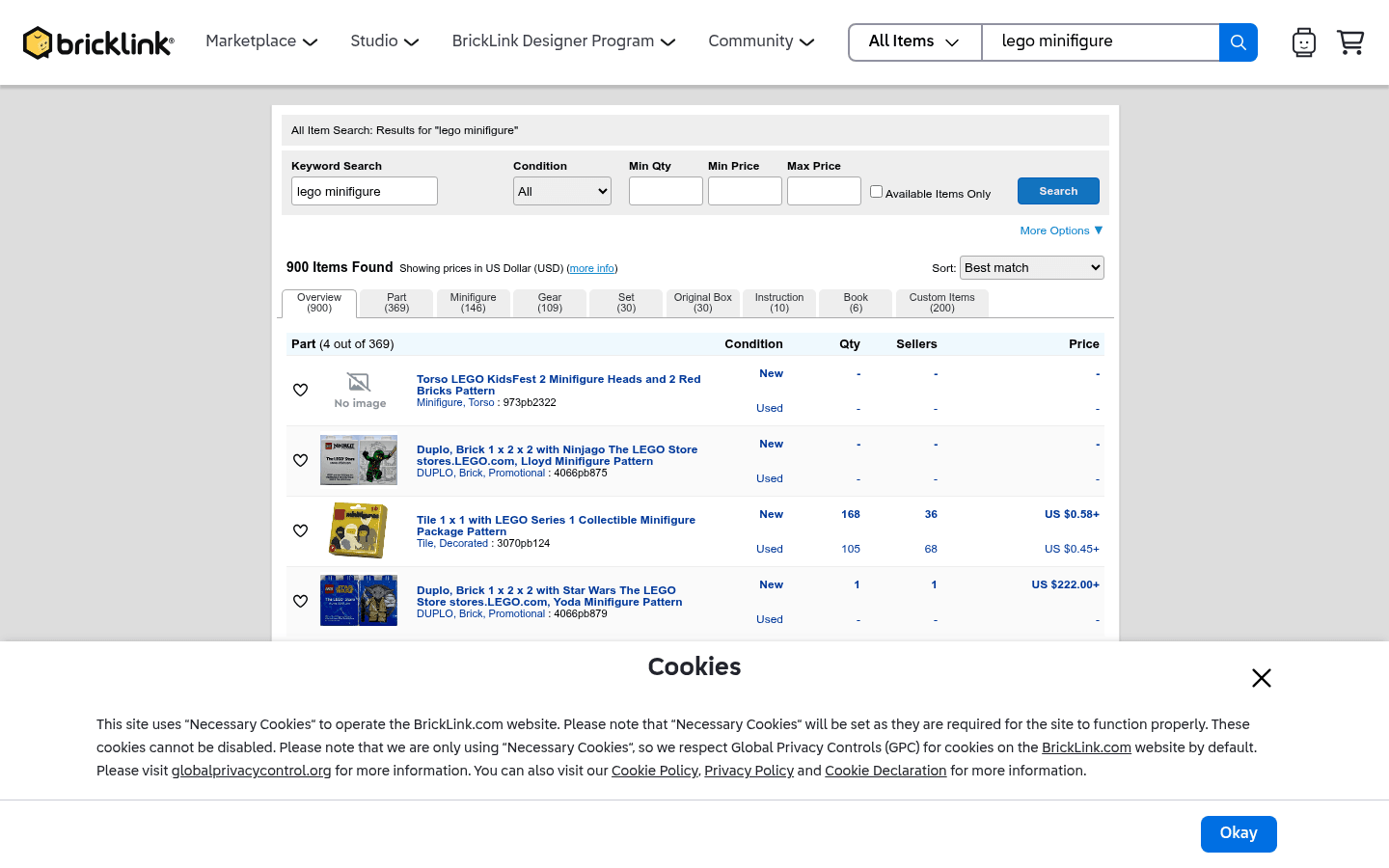
Before choosing where to sell, it helps to see the difference between a live-selling marketplace, a broad search marketplace, a LEGO-native catalog, and a social or local channel. These screenshots are visual references only. Platform interfaces, fees, and rules can change.
.png)
